

An Out of Office Message is an automatic email reply used to inform people that you are temporarily unavailable due to vacation, holiday leave, business trip, sick leave, or any other absence. A well-crafted auto-reply helps maintain professional communication, manage expectations, and guide the sender toward alternative contact options.
Whether you need a simple out of office email, a professional OOO template, or a short auto-response for Outlook, Teams, or Gmail, using a clear and polite message ensures smooth workflow even when you are away.
Out of Office Message Outlook
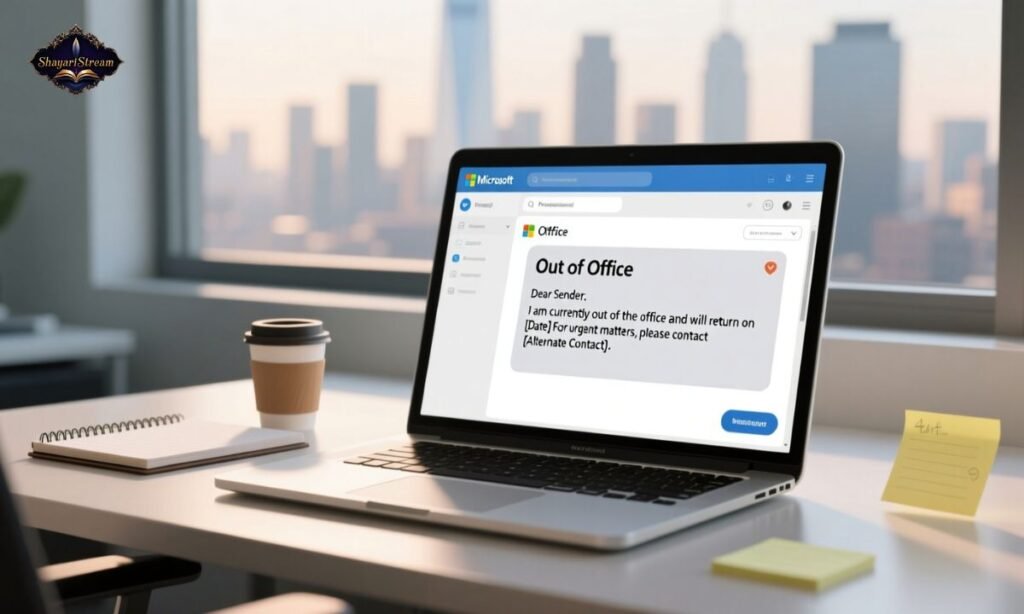
- I am currently out of the office and will have limited access to Outlook; I will respond to your email once I return.
- Thank you for your message. I am away from Outlook and will reply after I resume work.
- I’m currently unavailable on Outlook; for urgent matters, please contact my team at [email].
- I am out of the office and not checking Outlook regularly; I will return on [date].
- I’m away from Outlook at the moment; I appreciate your patience until I respond.
- I am on leave and have limited access to Outlook; I’ll get back to you upon my return.
- I am currently offline from Outlook—please expect a delay in my response.
- I am out of the office and will review your Outlook message once I’m back on [date].
- I am temporarily away and unable to check Outlook; urgent concerns can be forwarded to [name/team].
- Thank you for reaching out. I will not be available on Outlook until [date], and will respond afterward.
Simple Out of Office Message
- I’m currently out of the office and will reply when I return.
- I’m unavailable right now but will get back to you soon.
- I’m away from my desk and will respond as soon as possible.
- I’m out of office today and will reply upon my return.
- I’m currently unavailable; thank you for your patience.
- I’m out for the day and will respond when I’m back.
- I’m away at the moment; I’ll follow up shortly.
- I’m not available right now but will return your message soon.
- I’m out today—please expect a delayed response.
- I’m currently offline and will reply once I’m back.
Out of Office Message for Sick Leave
- I am currently on sick leave and unable to respond to emails promptly.
- I am out of office due to illness and will reply when I am well enough to return.
- I am recovering and not checking email regularly; thank you for your understanding.
- I am on medical leave—urgent matters can be directed to [alternate contact].
- I am unwell and unavailable via email at the moment; I appreciate your patience.
- I am currently out sick and unable to provide timely responses.
- I am on health leave and will get back to you once I resume work.
- I’m currently away for medical reasons; I’ll reply when I return.
- I’m on sick leave and unable to check email frequently—thank you for your cooperation.
- I am temporarily out of office for health-related reasons and will respond upon recovery.
Out of Office Message in Teams
- I am currently away from Teams and will reply once I’m back online.
- I’m not available on Microsoft Teams at the moment; I’ll respond when I return.
- I am offline and unavailable on Teams; urgent issues can be shared via email.
- I’m currently out of office and not active on Teams—please expect a delay.
- I’m away and not checking Teams messages until I’m back.
- I am temporarily unavailable on Teams but will reply once I am online.
- I’m currently out of office and inactive on Teams; thank you for your patience.
- I’m offline from Teams and will be back on [date] to respond.
- I am away and not monitoring Teams at this time; contact [name] for assistance.
- I am out of office and may not be able to respond on Teams right away.
Out of Office Message for Holiday 🎄✈️
- I’m currently on holiday leave and will respond once I return 🌴.
- I am away on vacation and have limited access to email ☀️.
- I’m out on holiday break and will reply after [date] 🎉.
- Thank you for your message — I’m on holiday and offline for now 🏖️.
- I’m currently enjoying my holiday leave and will get back to you soon ✈️.
- I’m out of office for the holidays and will respond when I return 🎄.
- I am away celebrating the holidays — replies may be delayed 🕊️.
- I’m currently on a short holiday break and will reply after my return ☘️.
- I’m away for a scheduled holiday and not checking my inbox regularly 🌍.
- I am on holiday leave until [date] and will reply once I’m back 😊.
Simple Out of Office Message for One Day 📅
- I’m out of office for the day and will respond tomorrow ✅.
- I’m away for one day and will reply once I return 🕒.
- I’m currently unavailable for the day — thank you for your patience 🙏.
- I’m out today and will get back to you soon 📌.
- I’m unavailable for the next 24 hours — response may be delayed ⏳.
- I’m out of office today and will follow up shortly 💼.
- I’m away for the day and will return messages tomorrow 📤.
- Taking a short leave today; I’ll reply after I’m back 🗓️.
- Out of office for a day — thanks for understanding 🤝.
- Stepping away for the day, will reply when I return 🔁.
How to Set Out of Office Message in Outlook ⚙️📧
- Go to File > Automatic Replies in Outlook and enable your OOO message ✉️.
- Open Settings > Out of Office and create your auto-response 🔧.
- In Outlook, navigate to Automatic Replies and type your message 🖊️.
- Use Rules & Alerts to schedule your Out of Office auto-email 📌.
- Enable your Auto-Reply under Account Settings for smooth communication 💻.
- Click File > Automatic Replies, select date range, and save ✅.
- In Outlook 365, open Settings > View All Outlook Settings > Automatic Replies ⚙️.
- Choose Send Automatic Replies, add your message, and confirm ♥️.
- Set time duration and alternative contact while configuring your OOO message 📆.
- Save your changes so your Outlook auto-response is active when you’re away 🚀.
Professional Out of Office Message 🏢📨
- I am currently out of office and will respond once I return to work.
- Thank you for your email. I am unavailable and will reply after [date].
- I am away from the office and not monitoring email during this period.
- I will be out of office until [date] and will respond upon my return.
- Your message is appreciated — I will review it once I’m back online.
- I am currently on leave and will address your email when I return.
- I am out of office and have limited email access; thank you for your patience.
- I will respond to your inquiry after I resume work on [date].
- I am away from my desk and will follow up once I am available again.
- I am out of office at this time; for urgent matters, please contact [alternate contact].
Out of Office Message Template 📝
- I am currently out of office and will reply when I return on [date] 📆.
- Thank you for your email — I am unavailable and will respond soon ✉️.
- I am away from the office with limited access to email ⏳.
- I am currently on leave; I’ll get back to you after [date] 📌.
- I’m out of office — for urgent matters, contact [name/email] 📭.
- I am temporarily unavailable and will reply upon my return 🚪.
- I’m away from my desk and will respond once I’m back 🔄.
- I am on leave and will address your message after I return 💼.
- I’m currently offline and will reply when I resume work 📩.
- I am out of office through [date] — thank you for your patience 🤝.
Out of Office Message Sample ✅
- I’m out of office until [date] and will respond afterward.
- I am unavailable at the moment and will reply upon my return.
- I’m currently on leave and not checking email regularly.
- I am away for a short period — thank you for your understanding.
- I’m out of office and responses may be delayed until I return.
- I’m currently unavailable and will respond when I’m back online.
- Thank you for your message — I’ll reply after my leave.
- I’m not in the office and have minimal email access.
- I’m away temporarily — I appreciate your patience.
- I’ll be back on [date] and will reply as soon as possible.
Out of Office Message Gmail 📩🌐
- I am currently out of office and using Gmail’s auto-reply until [date].
- I’m unavailable and Gmail will send an automatic response on my behalf.
- I am away from email — you will receive a delayed reply.
- I’m out of office on Gmail and will respond when I return.
- I’m currently offline; Gmail auto-reply is active during my absence.
- I am not available to check Gmail right now; I’ll reply soon.
- My Gmail auto-responder is enabled — I’ll reconnect after [date].
- I’m on leave and have limited access to Gmail at this time.
- Thank you for your email — I’ll reply upon my return to Gmail.
- I’m away from Gmail temporarily and appreciate your patience.
Out of Office Message Outlook 365 💻📨
- I’m out of office and Outlook 365 auto-reply is activated until [date].
- I have limited email access through Outlook 365 during this period.
- I’m currently on leave — Outlook 365 will deliver my auto-response.
- I am away and my Outlook 365 account is set to automatic replies.
- I’m offline and using Outlook 365 auto-notification for my absence.
- I’m unavailable on Outlook 365 and will return messages afterward.
- My Outlook 365 status is set to Out of Office until [date].
- I’ll reply after I return — Outlook 365 will notify you in the meantime.
- I’m away from work and Outlook 365 will handle responses temporarily.
- I am not checking Outlook 365 emails regularly until I’m back.
New Outlook Out of Office Message ✨📬
- I’m currently out of office using the new Outlook auto-reply feature.
- I’m away and have enabled Out of Office status in the new Outlook.
- I’ll be unavailable until [date]; new Outlook will notify senders.
- I am using the latest Outlook settings to auto-respond while I’m away.
- I’m off work — new Outlook is sending auto-replies on my behalf.
- I am unavailable and the updated Outlook will confirm my status.
- I’ve activated OOO mode in the new Outlook version until I return.
- I am temporarily offline and the new Outlook reply will notify you.
- I’ll respond when I’m back — new Outlook is set to automatic replies.
- Out of office is enabled in the new Outlook; I will return messages later.
Maternity Leave Out of Office Message 👶💐
- I am currently on maternity leave and will not be checking emails regularly.
- I am away on maternity leave and will respond after I return on [date].
- Thank you for your message — I am on maternity leave and unavailable at this time.
- I am out of office for maternity leave; urgent matters can be directed to [contact].
- I am spending time with my newborn and will be away until [date].
- I am currently on maternity leave and will reply once I resume work 👶.
- I’m temporarily away to welcome my baby; I appreciate your understanding.
- I will be unavailable during my maternity leave and will respond after I return.
- I am currently on leave due to maternity and not checking email often.
- I’m on maternity leave; for immediate assistance, please reach [alternate contact].
Best Out of Office Message ⭐📧
- I am currently away from the office and will respond once I return.
- I’m out of office and appreciate your patience until I can reply.
- I am temporarily unavailable and will get back to you after [date].
- Thank you for reaching out — I’ll respond when I return to work.
- I’m out of office with limited access to email at the moment.
- I am away and not checking email regularly; replies may be delayed.
- I’ll review your message once I’m back in office 📌.
- I am out on leave and will reply soon after I return.
- Your email is important — I will get back to you when I’m available.
- I am currently out of office and will follow up upon my return.
Outlook Out of Office Message Setup 🛠️📨
- Go to File > Automatic Replies to activate your OOO message in Outlook.
- Open Settings > Automatic Replies, type your message, and save ✅.
- Select Send Automatic Replies and add your timeframe in Outlook.
- Use Rules & Alerts to customize your auto-response if needed.
- In Outlook 365, choose View All Outlook Settings > Automatic Replies to configure OOO.
- Add a start and end date so Outlook replies automatically while you’re away 📅.
- You can include an alternate contact under your auto-reply for better communication.
- Save your changes to ensure the Out of Office feature is active 🔄.
- For external contacts, enable replies for “Outside My Organization” as well.
- Disable your OOO message manually once you are back to avoid confusion.
Christmas Out of Office Message 🎄✨
- I am currently out of office for the Christmas holiday and will reply after [date].
- I’m away celebrating Christmas and not checking email regularly 🎁.
- I am out for the Christmas break — responses may be delayed until my return.
- Merry Christmas! I am currently offline and will respond after the holidays 🎄.
- I’m taking Christmas leave and will get back to you when I’m back in office.
- I am out of office for Christmas festivities; thank you for understanding.
- I’m away for the holiday season and will reply after [date] ✨.
- I am offline for Christmas and will respond in the new working week.
- Wishing you a wonderful holiday! I’ll reply once I return 🎉.
- I am currently on holiday leave for Christmas — I’ll follow up soon.
Standard Out of Office Message ✅📬
- I am currently out of office and will reply when I return.
- I’m unavailable at this time and will respond shortly.
- I am away from work and not checking email frequently.
- I’ll get back to you after I return to the office.
- I am currently on leave and responses may be delayed.
- I’m out of office and will follow up soon.
- I’m unavailable right now; thank you for your patience.
- I will respond when I am back online.
- I’m out of office and will reply at the earliest convenience.
- I’m away temporarily and will respond upon my return.
Frequently Asked Questions
What is an Out of Office Message?
An Out of Office Message is an automatic email reply that informs the sender you are temporarily unavailable.
How do I write a professional Out of Office Message?
A professional Out of Office Message should be short, polite, mention your return date, and provide an alternate contact if needed.
How do I set an Out of Office Message in Outlook?
You can set it by going to File > Automatic Replies in Outlook and entering your custom auto-response.
What should I include in an Out of Office Message?
Include the reason you are away, the return date, availability details, and optional alternate contact information.
Can I set an Out of Office Message on Gmail?
Yes, Gmail offers a Vacation Responder feature that allows you to set an automatic out of office reply.
What is the best short Out of Office Message?
The best short Out of Office Message clearly states that you are unavailable and when you will be able to reply.
Final Words on Out of Office Message
An Out of Office Message is a simple yet powerful professional tool that maintains communication clarity while you are away. Whether you are using Outlook, Gmail, or Teams, a polished and well-structured auto-reply enhances workplace efficiency and creates a seamless experience for anyone trying to reach you. By setting the right message, you protect your time, set expectations clearly, and ensure no important communication is overlooked, even in your absence.

Sarah Mitchell is a creative writer and content enthusiast who believes in the timeless power of words. With a passion for literature and expression, she dedicates her work to crafting relatable and meaningful pieces that inspire and connect with readers.
At ShayariStream, Sarah focuses on curating English Shayari, Quotes, Messages, and Status & Meanings that capture emotions and moments in the most authentic way. Her writing reflects everyday feelings—from love and happiness to motivation and reflection—making it easy for people to find words that truly resonate.
Sarah’s mission is to help readers express their thoughts beautifully, whether it’s through a heartfelt message, an inspiring quote, or a simple status update. Her commitment to quality and creativity ensures that every visitor to ShayariStream leaves with words that add meaning to their lives.