

If you’ve ever seen the alert “Message Blocking Is Active”, it means your phone or carrier is preventing texts from being sent or received. This issue often appears on T-Mobile, Android, or iPhone devices due to network restrictions, blocked numbers, or plan limitations. Understanding why this error occurs helps you fix message blocking problems quickly and restore smooth text messaging without interruptions.
What Does “Message Blocking Is Active” Actually Mean?
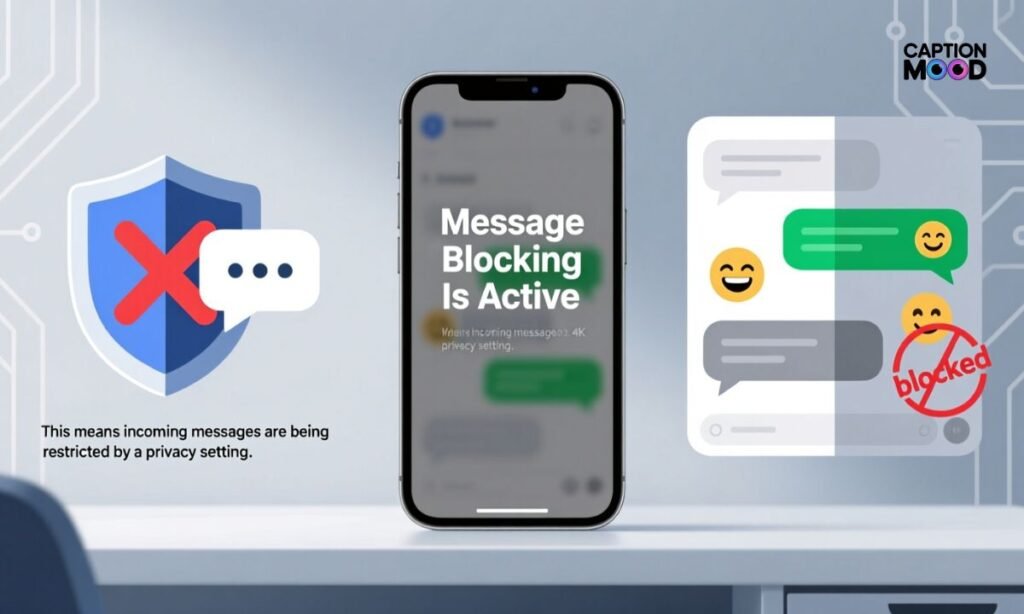
When your device displays the message “Message Blocking Is Active,” it simply means your phone or network carrier is preventing text messages from being sent or received. In simpler terms, your message can’t reach its destination because of restrictions, service plan issues, or blocked permissions.
This error typically appears on T-Mobile, AT&T, or Verizon networks and can affect both Android and iPhone users. It’s a common problem that can arise from account limitations, carrier filters, or message type restrictions. Think of it as your phone saying: “Something is stopping your message from going through.”
Why Does “Message Blocking Is Active” Happen?
There are several possible reasons why your phone might show this alert. The issue could stem from your carrier plan, device settings, network strength, or even blocked contacts. Below, let’s break down each major cause in detail so you can identify and fix it effectively.
Carrier Restrictions
One of the most common causes of the “Message Blocking Is Active” error is carrier restrictions. Your mobile service provider may have limited your ability to send or receive messages due to:
| Possible Cause | Description |
| Unpaid Bill or Suspended Account | If your plan is inactive or your bill is overdue, your carrier may temporarily block messaging services. |
| Limited Plan Features | Some prepaid or data-only plans don’t include SMS or MMS capabilities. |
| International Messaging Disabled | If you’re trying to text across borders, your carrier may restrict international messages by default. |
To resolve this, contact your carrier’s customer support or log in to your account dashboard to confirm your plan includes messaging services.
Blocked Contacts
Another frequent trigger is blocked numbers. If either you or the recipient has blocked the other, messages won’t go through—resulting in the same “Message Blocking Is Active” alert.
To check:
- Open your phone’s blocked list and verify if the number appears there.
- Ask the recipient to do the same.
Unblocking the contact usually resolves the problem instantly. This step is especially crucial if you’re messaging someone for the first time or if your number was recently changed.
Short Code or Promo Message Restrictions
Sometimes, the issue isn’t with personal messages but with short codes—the 4- to 6-digit numbers used by banks, apps, and companies to send verification codes or promotional alerts.
Your phone or carrier may block these for security or privacy reasons. In such cases:
- Enable short code permissions in your messaging app settings.
- Contact your carrier to whitelist marketing or verification texts.
Many Android and iPhone users face this problem when they can’t receive OTP codes, two-factor authentication messages, or bank alerts.
Device or App Settings
Your own phone settings can sometimes trigger the message blocking error. If you’ve recently switched SIM cards, updated your phone, or changed apps, your default SMS configuration might have changed.
Here’s what to check:
- Default Messaging App: Ensure your main texting app (e.g., Messages, Textra) is set as the default.
- Permissions: Verify that your messaging app has permission to send and receive SMS.
- Data Restrictions: Disable any background data limits that may affect SMS delivery.
Small configuration errors can cause major texting issues—especially after software updates or app reinstalls.
Weak Signal or Network Issues
Sometimes, the problem has nothing to do with your settings or carrier—it’s simply network instability. Weak cellular signals or temporary outages can block message delivery.
Try these quick fixes:
- Toggle Airplane Mode ON and OFF.
- Move to an area with stronger signal strength.
- Restart your phone to refresh the connection.
If you’re in a remote area, consider switching to Wi-Fi calling or RCS messaging options if your carrier supports them.
SIM or Account Problems
Finally, issues with your SIM card or carrier account can also cause this error. A damaged or inactive SIM can prevent your phone from authenticating properly with the network.
Check for these signs:
| Problem Type | Indication | Solution |
| Inactive SIM | No signal or “Emergency Calls Only” status | Contact your carrier for reactivation |
| SIM Card Misalignment | SIM not properly seated in tray | Remove, clean, and reinsert the SIM |
| Account Transfer Issue | Recent number porting or carrier switch | Wait for full activation (usually 24 hours) |
If the issue persists even after troubleshooting, request a SIM replacement or account reset from your provider.
How to Fix the “Message Blocking Is Active” Error?
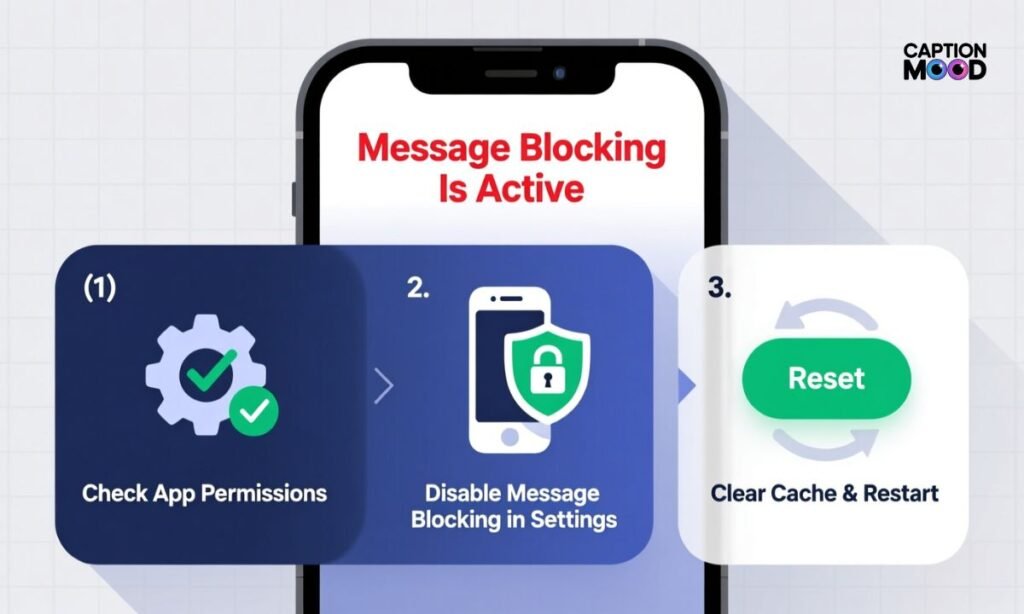
If your phone keeps showing the “Message Blocking Is Active” alert, don’t panic — it’s completely fixable. Below are the proven steps to help you diagnose and fix the issue on both Android and iPhone devices. Let’s go step-by-step so you can restore your messaging service smoothly.
1. Make Sure You Have a Strong Signal
A weak or unstable network signal can temporarily block outgoing or incoming messages.
Before trying complex fixes, check your cellular bars or network icon.
Try this:
- Move to an open area or near a window.
- Turn Airplane Mode ON for 10 seconds, then turn it OFF.
- Wait for your phone to reconnect to your carrier’s network.
If your signal remains poor, switch to Wi-Fi calling or wait until you’re in a stronger coverage zone.
2. Verify Your Account Status
Your carrier may have restricted your SMS services due to billing issues, expired plans, or data-only accounts.
How to check:
- Log in to your carrier account portal or mobile app.
- Ensure your plan includes text messaging (SMS/MMS).
- If your bill is overdue, make a payment to restore services.
Pro Tip: Prepaid or family accounts may have limited texting permissions, so verify your line’s specific status.
3. Check Your Blocklist
If you or the recipient has blocked each other, your messages will automatically fail — triggering the “message blocking is active” notification.
Steps to unblock contacts on Android & iPhone:
| Device | Steps to Unblock a Contact |
| Android | Open Phone app → Settings → Blocked numbers → Tap “X” or “Unblock” beside the contact. |
| iPhone | Go to Settings → Phone → Blocked Contacts → Swipe left → Tap “Unblock.” |
After unblocking, try sending a simple test message to confirm that the block has been removed.
4. Clear the Messaging App Cache (Android Only)
Sometimes, corrupted cache data in your messaging app can interrupt normal SMS delivery.
To clear cache:
- Go to Settings → Apps → Messages.
- Tap Storage & Cache → Clear Cache.
- Restart your device afterward.
This refreshes the app memory and removes any hidden glitches affecting SMS performance.
5. Enable “Send as SMS” on iPhone
If you’re an iPhone user, iMessages might fail to convert to SMS when network issues occur. Turning on the “Send as SMS” option ensures your message sends even if iMessage is unavailable.
Steps:
- Open Settings → Messages.
- Toggle Send as SMS → ON.
Now, if iMessage fails, your phone automatically delivers texts via the standard SMS network.
6. Disable Wi-Fi Calling
Wi-Fi Calling is convenient but can interfere with message routing on some carriers. If the “Message Blocking Is Active” error persists, try turning it off temporarily.
How to disable:
- Android: Settings → Network & Internet → SIMs → Wi-Fi Calling → Toggle OFF.
- iPhone: Settings → Phone → Wi-Fi Calling → Toggle OFF.
After disabling, try resending your message over a cellular network.
7. Restart Your Phone
A simple restart can refresh all network connections and messaging processes.
Hold down the power button, tap Restart, and wait for your device to reboot.
Restarting clears temporary bugs that may be interrupting message delivery or blocking communication between your SIM and carrier.
8. Check Your SIM Card
If your SIM card isn’t properly seated, or if it’s damaged, your device may not authenticate correctly with the network.
To inspect:
- Power off your device.
- Remove the SIM card carefully and clean the metal contacts.
- Reinsert it securely and restart your phone.
If your SIM appears scratched or bent, request a SIM replacement from your carrier.
9. Reset Your APN Settings
Incorrect APN (Access Point Name) configurations can disrupt text and data transmission. Resetting them restores the correct carrier defaults.
Steps to reset APN:
- Android: Settings → Network & Internet → Mobile Network → Access Point Names → Reset to Default.
- iPhone: Settings → Cellular → Cellular Data Network → Reset Settings.
Once done, reboot your phone and test by sending an SMS.
10. Contact Your Carrier
If none of the above fixes work, the issue likely lies with your carrier’s backend system.
Contact their support line or visit a service center for direct help.
Be ready to provide:
- Your account details
- The exact error message
- The steps you’ve already tried
Carriers like T-Mobile, Verizon, and AT&T can manually unblock your messaging feature or reset your SMS permissions.
Pro Tip: A Smarter Way to Send and Manage SMS
If you frequently face texting problems, consider using smart messaging apps like Google Messages, Pulse SMS, or Textra. These apps use RCS (Rich Communication Services) and cloud backup, allowing smoother message delivery even during network downtime.
They also let you:
- Sync messages across multiple devices.
- Schedule texts.
- Detect blocked or failed messages instantly.
Using these smarter alternatives ensures you never miss an important text — even if your carrier experiences temporary restrictions.
Message Blocking Is Active on iPhone
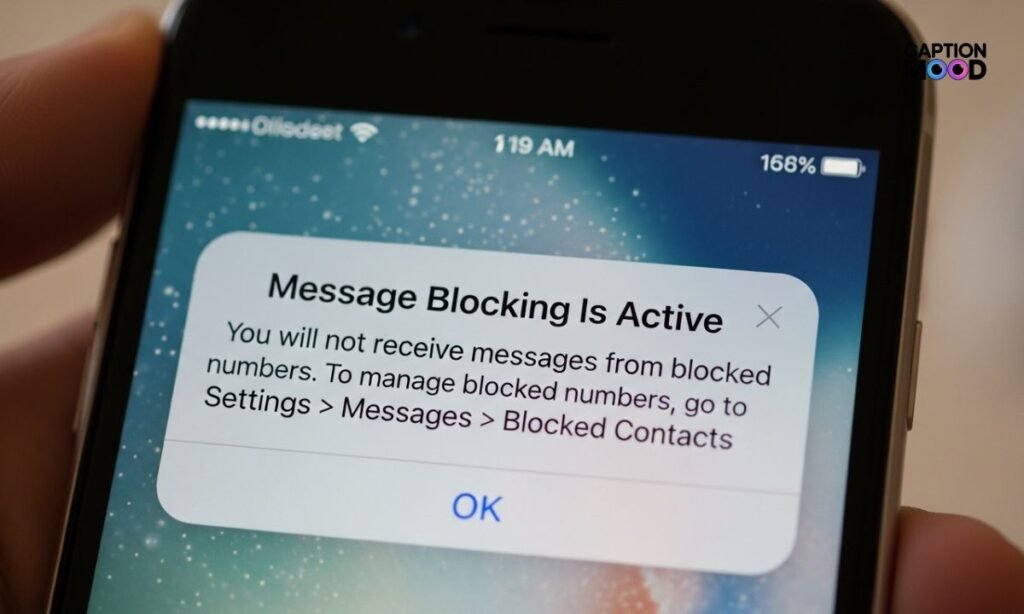
If you’re seeing “Message Blocking Is Active” on your iPhone, it usually means that your device or your carrier is restricting text message delivery. This can happen when iMessage fails, or when SMS/MMS messaging isn’t properly enabled.
Fix it easily:
- Go to Settings → Messages → Enable Send as SMS
- Check if your iMessage is activated (Settings → Messages → iMessage → ON)
- Make sure your phone number is listed under Send & Receive
- Restart your device after making changes
If the issue continues, toggle Airplane Mode ON and OFF or reset Network Settings by going to Settings → General → Transfer or Reset iPhone → Reset Network Settings.
This method often resolves Apple messaging restrictions and syncs your number back with the carrier’s SMS network.
Message Blocking Is Active on Android
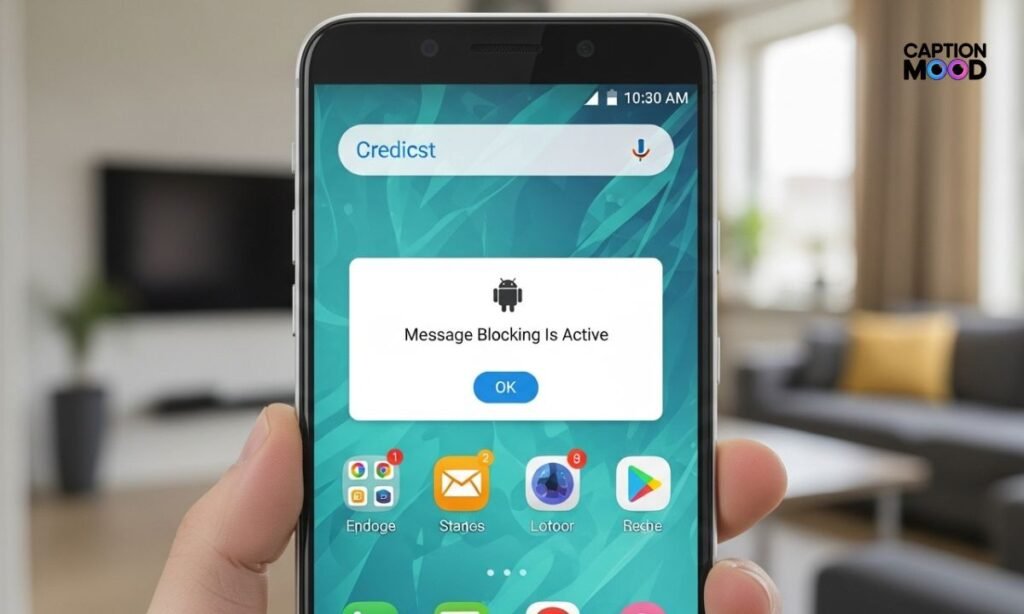
Android users frequently face this issue due to blocked contacts, disabled SMS permissions, or carrier configuration errors.
Here’s how to fix it:
- Check your Block List:
- Open Phone app → Settings → Blocked Numbers
- Remove any blocked contacts
- Open Phone app → Settings → Blocked Numbers
- Clear Message App Cache:
- Go to Settings → Apps → Messages → Storage → Clear Cache
- Go to Settings → Apps → Messages → Storage → Clear Cache
- Reset APN Settings:
- Settings → Network → Mobile Network → Access Point Names → Reset to Default
- Settings → Network → Mobile Network → Access Point Names → Reset to Default
- Reinsert your SIM card and restart your phone
If you’re using Google Messages, make sure Chat Features (RCS) are turned OFF temporarily while testing SMS functionality.
Unable to Send Message – Message Blocking Is Active (T-Mobile)
On T-Mobile, the “Message Blocking Is Active” error is quite common — especially for prepaid users, international texts, or suspended accounts.
Common T-Mobile Causes & Fixes:
| Cause | Explanation | Solution |
| Plan Restrictions | Your plan may not include texting features | Log in to T-Mobile account → Confirm messaging plan |
| Billing Issues | Pending bill or temporary account suspension | Clear dues or contact T-Mobile support |
| Short Code Block | T-Mobile may block promotional shortcodes by default | Ask support to enable short code messages |
| Content Filter | Parental or privacy filters enabled | Disable content filters from T-Mobile Family Mode |
Once you confirm your plan includes SMS and there’s no block on your line, reboot your phone and try sending a message again.
Free Msg: Receiver Unable to Receive Message – Message Blocking Is Active (T-Mobile)
When you see this full alert —
“Free Msg: Receiver Unable to receive message – Message Blocking Is Active”
It means the person you’re texting has message blocking enabled or their carrier (often T-Mobile) has restricted their messaging service.
In this case, you are not the problem — the recipient is.
What you can do:
- Ask the person to check their block list or contact T-Mobile support
- If it’s a business short code (like bank alerts or OTP), request them to enable short code access
- Try sending a message from another number to confirm
This message is generated automatically by T-Mobile’s system when the receiver’s line is restricted from SMS or premium messaging.
Message Blocking Is Active on Samsung
Samsung users often encounter this error due to app permission conflicts or carrier setting issues after system updates.
Fix it with these steps:
- Open Settings → Apps → Messages → Permissions
- Allow SMS, Contacts, and Storage access
- Allow SMS, Contacts, and Storage access
- Clear cache and data for Messages app
- Update your Samsung Messages app from the Galaxy Store
- If you’re using Dual SIM, ensure the correct SIM is selected for SMS
- Go to Settings → Connections → Mobile Networks → Network Mode → Select Auto
If the issue remains, switch temporarily to Google Messages as your default app — it automatically configures carrier profiles and can bypass older Samsung message restrictions.
Message Blocking Is Active – How to Turn It Off
Turning off message blocking depends on the cause — it could be your carrier settings, account status, or phone configuration. If your phone says “Message Blocking Is Active,” it means text services are being restricted.
Follow these quick steps to turn it off:
- Check your carrier plan: Ensure SMS/MMS messaging is included.
- Remove any number blocks: Unblock contacts in your phone settings.
- Disable content filters or parental controls: On some carriers (like T-Mobile FamilyMode), these settings prevent texting.
- Reset network settings: Go to Settings → General → Reset → Reset Network Settings (on iPhone) or similar path on Android.
- Restart your device after changes.
Once you’ve completed these steps, your phone should reconnect to the SMS network and allow messages to flow normally.
Message Blocking Is Active Android Fix
If you’re using an Android phone, the “Message Blocking Is Active” alert is usually triggered by messaging app glitches, SIM issues, or carrier blocks.
Try this Android-specific fix:
- Go to Settings → Apps → Messages → Storage → Clear Cache & Data.
- Reset APN Settings: Settings → Network → Mobile Network → Access Point Names → Reset to Default.
- Reinsert your SIM card and restart the device.
- Check your blocked numbers list.
- If you use Google Messages, disable “Chat Features” temporarily under Settings → Chat Features → Turn Off.
This combination usually restores proper SMS routing and clears internal configuration conflicts.
Message Blocking Is Active Reddit
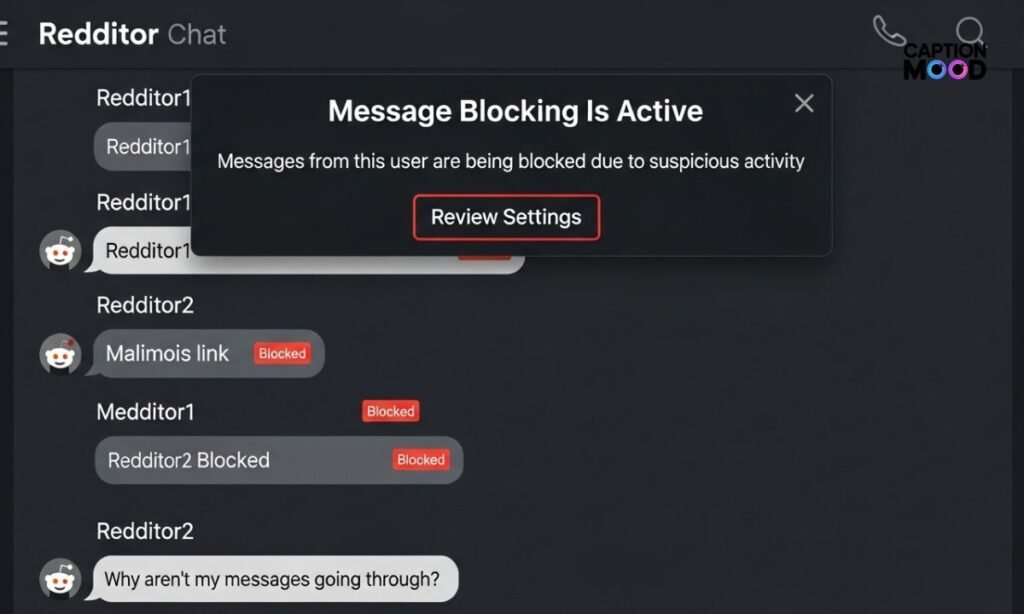
Many users discuss this issue on Reddit, where community members share real-life solutions that worked for them. According to multiple Reddit threads:
- The issue is most common on T-Mobile and MetroPCS networks.
- Often caused by account suspensions or short code restrictions.
- Some users fixed it by switching SIM cards or contacting customer service.
If nothing else works, Reddit users recommend asking your carrier to “refresh your network line” — this resets backend SMS permissions and usually solves the issue instantly.
Message Blocking Is Active T-Mobile
For T-Mobile users, this message appears when either you or the person you’re texting has message blocking enabled. It can also occur when short code messaging (used for verification or OTPs) is restricted by default.
To fix it on T-Mobile:
- Log in to your T-Mobile account portal.
- Check that your plan supports SMS & MMS messaging.
- Disable any FamilyMode or Content Filter settings.
- If you’re on a prepaid plan, make sure it includes texting services.
- Call T-Mobile support and request a “messaging feature refresh.”
After the refresh, reboot your phone and try sending a normal text — the error should disappear.
Unable to Send Message – Message Blocking Is Active
This full message
“Unable to send message – Message Blocking Is Active”
means your message could not be delivered because your number or the recipient’s number is blocked, or the carrier is preventing transmission.
Step-by-Step Solution:
- Unblock contacts on both devices.
- Check network connectivity (cellular or Wi-Fi).
- Ensure SMS permissions are active for your messaging app.
- Contact your carrier to confirm messaging access isn’t disabled.
- Update your phone’s software — outdated firmware can cause network sync errors.
Once fixed, send a test message to yourself or a friend to confirm that SMS delivery is restored.
Message Blocking Is Active Meaning
When you see the alert “Message Blocking Is Active,” it simply means your phone is not allowed to send or receive text messages due to a restriction from your device, SIM card, or carrier.
This can happen if your messaging plan is inactive, you’ve blocked a contact, or your carrier settings prevent SMS/MMS.
In short, the message indicates a communication block between your device and your mobile network not necessarily a phone malfunction.
So when your text fails and this notification appears, your phone is saying:
“Your message can’t go through right now — something is blocking it.”
Message Blocking Is Active T-Mobile
For T-Mobile users, this is one of the most common text errors. It usually means that your account doesn’t have messaging privileges enabled or that your recipient has message blocking turned on.
Typical T-Mobile Causes:
- Your billing or prepaid plan doesn’t include SMS.
- International texting is disabled.
- Content filters or FamilyMode restrictions are blocking messages.
- You’re trying to send a short-code or premium message (like a bank OTP).
How to Fix It:
- Log in to your T-Mobile account portal and confirm SMS access.
- Turn off FamilyMode filters or parental controls.
- Contact T-Mobile Support and ask them to reset or refresh your messaging line.
- Restart your phone and try again.
This refresh process usually resolves the issue within minutes.
Message Blocking Is Active iPhone Meaning
On iPhones, the message means your phone tried to send a text (usually via iMessage or SMS) but was blocked by either the network or your settings.
This could happen when:
- iMessage is turned off and “Send as SMS” is disabled.
- Your number is not registered with Apple’s servers.
- You’ve blocked the contact or they’ve blocked you.
- There’s a carrier restriction or no active plan.
So in iPhone terms, “Message Blocking Is Active” means your phone can’t route messages through either Apple servers or your cellular carrier, depending on which system failed.
Message Blocking Is Active Text
This alert often appears when sending a text message (SMS or MMS) and not receiving delivery confirmation. It can affect Android, iPhone, and even feature phones.
Possible Text Message Causes:
- Recipient number is inactive or invalid.
- Network congestion or temporary outage.
- App cache issues or outdated messaging app.
- SIM or APN configuration errors.
Fix Tips:
- Delete old text threads and restart your phone.
- Clear your message app’s cache (Android).
- Reset network settings (iPhone).
- Reinsert SIM and resend a test message.
This helps re-establish your SMS route and clears blocked connections.
Message Blocking Is Active Mint Mobile
If you’re using Mint Mobile, this issue can appear right after SIM activation or during number porting. The carrier may not have fully registered your line for SMS or MMS messaging.
How to Fix Message Blocking on Mint Mobile:
- Open the Mint Mobile app and confirm your plan status is “Active.”
- Go to Settings → Network → Access Point Names → Reset to Default.
- Turn off Wi-Fi Calling and restart your phone.
- If you just switched carriers, wait 24 hours for number porting to complete.
If texts still fail, contact Mint Mobile Support via chat — they can refresh your SMS provisioning remotely.
Message Blocking Is Active iPhone – How to Unblock
If your iPhone keeps showing this message, you may have blocked the sender or restricted SMS permissions.
Steps to Unblock Message Blocking on iPhone:
- Go to Settings → Messages → Turn ON Send as SMS.
- Check your Blocked Contacts:
- Settings → Phone → Blocked Contacts → Swipe Left → Tap Unblock.
- Settings → Phone → Blocked Contacts → Swipe Left → Tap Unblock.
- Reset Network Settings:
- Settings → General → Transfer or Reset iPhone → Reset Network Settings.
- Settings → General → Transfer or Reset iPhone → Reset Network Settings.
- Re-insert your SIM and reboot the phone.
- Ensure your carrier plan includes messaging.
After performing these steps, try sending a message to a known active contact — your iPhone should now deliver it successfully.
Understanding the Meaning of “Message Blocking Is Active”
When you see the alert “Free Msg: Unable to send message – Message Blocking Is Active,” it simply means that your phone or your carrier network is blocking your text messages from being sent or received. This usually happens due to account restrictions, blocked contacts, or carrier-specific filters.
What Does “Message Blocking Is Active” Mean?
In simple terms, it means your messaging service is temporarily disabled or restricted. It may be because you’re trying to text a blocked number, your plan doesn’t support SMS, or your carrier (like T-Mobile or Mint Mobile) has applied certain message filters.
Message Blocking Is Active on T-Mobile
On T-Mobile, this issue is quite common. It often occurs when you’ve reached your text limit, your account is suspended, or your number is restricted from sending SMS to specific recipients. Sometimes, T-Mobile’s content filtering can also trigger this error, especially for promotional or short-code messages.
Message Blocking Is Active on iPhone – Meaning and Fix
If you’re an iPhone user, “Message Blocking Is Active” usually means iMessage isn’t working or Send as SMS is turned off. Check your cellular plan, make sure iMessage and SMS are enabled, and remove any blocked contacts. You can fix this by going to:
Settings → Messages → Enable Send as SMS.
Message Blocking Is Active on Android
For Android users, this issue may appear due to app permissions, cached data, or APN configuration errors. To fix it, clear your Messages app cache, check your SIM, and reset your APN settings to default. You can also test messaging another number to confirm if it’s a network-side block or device-level restriction.
Message Blocking Is Active – Mint Mobile Users
Mint Mobile users often face this message when their SIM isn’t properly activated or their plan doesn’t include texting services. Try re-inserting your SIM, verifying your plan, and ensuring your account payment is up-to-date.
Unable to Send or Receive Message – Message Blocking Is Active
If your message says “Unable to receive message – message blocking is active,” it means the recipient’s number has blocked you or their carrier has restricted incoming messages. Conversely, “Unable to send message – message blocking is active” means the issue is on your end — usually a network, settings, or account limitation.
Quick Comparison Table
| Scenario | Common Cause | Suggested Fix |
| iPhone Error | iMessage disabled / blocked contact | Enable SMS in Settings |
| Android Error | Cache or APN settings issue | Clear cache, reset APN |
| T-Mobile | Account or promo message restriction | Contact support |
| Mint Mobile | SIM or plan problem | Reactivate SIM |
| Any Device | Weak signal or carrier filter | Restart phone / refresh signal |
In short, the “Message Blocking Is Active” error is not a permanent issue — it’s simply your phone or carrier preventing SMS delivery for security, account, or configuration reasons. With a few quick steps, you can unblock messages and restore normal texting across Android, iPhone, T-Mobile, Samsung, or Mint Mobile devices.
Free Msg: Message Blocking Is Active — What It Means & How to Fix It
Have you ever tried sending a text and received a notification saying “Free Msg: Message Blocking Is Active”? This message can appear on any device — whether you’re using T-Mobile, Mint Mobile, Android, or iPhone — and it means your message cannot be delivered because your carrier or settings are blocking SMS or MMS services.
What Does It Mean When It Says “Message Blocking Is Active”?
In simple words, this alert means your phone is prevented from sending or receiving text messages. It usually happens due to:
- Carrier restrictions (especially with prepaid or suspended accounts)
- Blocked contacts on your device
- Disabled messaging permissions or app issues
- Network or signal problems that interrupt message delivery
In short, the message tells you that your carrier or device settings have temporarily restricted your texting feature.
T-Mobile Message Blocking Is Active
If you’re a T-Mobile user, this message is quite common. It may appear as:
“Free Msg: Unable to send message – Message Blocking Is Active (T-Mobile).”
This usually happens when:
- Your T-Mobile plan doesn’t include text messaging.
- Your account is on hold or suspended.
- You’re trying to text a short code or promotional number that’s restricted.
- Your SIM card isn’t correctly activated.
🟢 Pro Fix:
Go to Settings → Messages → Enable SMS (on iPhone) or Settings → Apps → Messages → Clear Cache (on Android).
If the issue remains, contact T-Mobile support and ask them to check your SMS services and plan permissions.
How to Fix “Message Blocking Is Active” Error
Here’s how you can fix this issue on any phone:
| Step | Action | Works For |
| 1 | Check your signal strength | All carriers |
| 2 | Make sure your plan supports SMS | T-Mobile, Mint Mobile |
| 3 | Remove or unblock contacts | iPhone & Android |
| 4 | Clear Messages app cache | Android only |
| 5 | Enable “Send as SMS” | iPhone |
| 6 | Reinsert or replace SIM card | All devices |
| 7 | Reset APN or network settings | Android & iPhone |
| 8 | Contact your carrier | Final step |
These steps fix most message blocking problems within minutes and restore smooth text messaging.
Quick Takeaway
The “Message Blocking Is Active” alert simply means your phone or carrier has paused your messaging service. It’s not a permanent issue — just a temporary restriction due to blocked contacts, plan issues, or settings errors. With the quick fixes above, you can easily turn off message blocking and continue sending messages without interruption.
Why Does It Say “Message Blocking Is Active”?
When your phone says “Message Blocking Is Active,” it means your messages are being restricted by your carrier, SIM card, or phone settings. This alert is common on T-Mobile, Mint Mobile, Android, and iPhone devices. The system is telling you that text messages cannot be sent or received because something is blocking the service.
Here are the most common reasons why it appears:
- Your mobile plan doesn’t include texting services.
- Your account is suspended or out of credit.
- You’ve blocked the recipient’s number (or they’ve blocked you).
- Your device messaging settings or permissions are disabled.
- There’s a network or SIM card issue affecting message delivery.
In short, your phone or network is preventing text delivery either for security, account, or technical reasons.
“Messages Blocking Is Active” – What It Actually Means
The alert “Messages Blocking Is Active” is just another variation of the same system message. It doesn’t mean your phone is broken — it means your SMS service is temporarily paused.
For example, on Android, this may happen if your default Messages app cache is full or if your carrier has restricted message sending.
On iPhone, this can appear when iMessage fails and “Send as SMS” is disabled. To fix it:
- Go to Settings → Messages → Enable Send as SMS
- Ensure cellular data is turned on
- Restart your phone
Message: Unable to Send – “Message Blocking Is Active”
If you receive “Unable to send message – message blocking is active,” it means your device is trying to send a text, but your carrier blocked it before delivery.
Here’s what could be happening:
- Your plan is text-only restricted or expired.
- You’re trying to send a message to a blocked or premium number.
- Your account needs verification or payment.
- Your network signal is too weak to complete the message.
🟢 Pro Tip: Try sending a test message to another contact.
If it works, the problem is with that specific number or carrier route. If not, it’s your plan or network settings that need fixing.
Quick Fix Summary Table
| Problem Type | Possible Cause | Simple Fix |
| Message not sending | Carrier restriction | Contact your provider |
| Message app issue | Cache or update needed | Clear cache / update app |
| Blocked contact | Number blocked accidentally | Unblock the contact |
| Plan limitation | SMS/MMS disabled | Verify your plan |
| Weak signal | Poor network coverage | Move to better signal area |
Frequently Asked Questions
Why does my phone say Message Blocking Is Active?
It means your carrier or device settings are preventing text messages from being sent or received temporarily.
How do I fix Message Blocking Is Active on Android?
Clear your Messages app cache, check blocked contacts, and reset APN settings to restore SMS sending.
Why does Message Blocking Is Active appear on iPhone?
It happens when iMessage or “Send as SMS” is turned off, or your number or carrier settings are restricted.
What does Free Msg: Message Blocking Is Active mean?
It’s a system alert from your carrier (like T-Mobile) showing that outgoing or incoming messages are blocked.
How to turn off Message Blocking Is Active on T-Mobile?
Ensure your T-Mobile plan supports SMS, your account is active, and contact support to remove message restrictions.
Why am I unable to send or receive texts due to Message Blocking Is Active?
This occurs when your number, SIM, or account has restrictions, or the recipient has blocked you.
Final Words
So, the next time your screen flashes “Message Blocking Is Active” or “Unable to send message,” don’t panic. It’s usually a temporary block that you can fix by checking your plan, blocked numbers, or messaging settings. Once corrected, your texts will send smoothly again no carrier help needed in most cases.

Sarah Mitchell is a creative writer and content enthusiast who believes in the timeless power of words. With a passion for literature and expression, she dedicates her work to crafting relatable and meaningful pieces that inspire and connect with readers.
At ShayariStream, Sarah focuses on curating English Shayari, Quotes, Messages, and Status & Meanings that capture emotions and moments in the most authentic way. Her writing reflects everyday feelings—from love and happiness to motivation and reflection—making it easy for people to find words that truly resonate.
Sarah’s mission is to help readers express their thoughts beautifully, whether it’s through a heartfelt message, an inspiring quote, or a simple status update. Her commitment to quality and creativity ensures that every visitor to ShayariStream leaves with words that add meaning to their lives.